Categorizing points
The Manage Points page helps you to find, sort, and categorize data points. When points are organized into appropriate categories, report designers can quickly locate points by using the Categories filter on the Search bar, which help them to more easily focus on what to use in their reports.
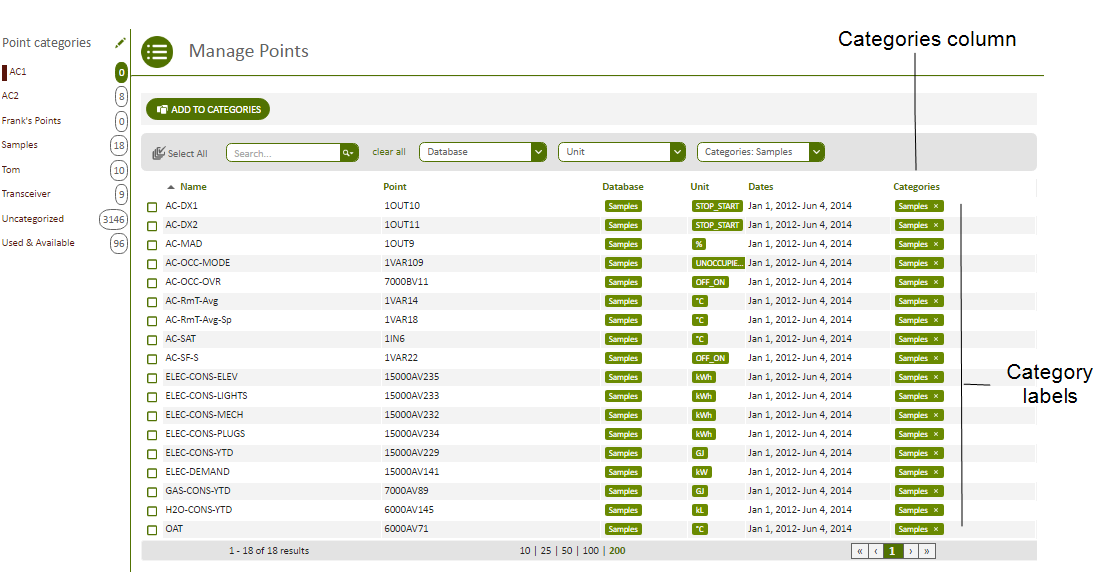
When a point is categorized, its category label appears in the Categories column in the grid area on a page or dialog box. Users can click the label in the Categories column to filter the grid to show only the points in that category.
To add a point to a category, select the point, click Add to Categories and then select one or more of the existing categories in the drop-down list.
Add, modify and delete point categories
Use the following steps to add a point category using the Add to Categories button:
- On the Manage Points page, click the Add to Categories button.

- Enter a category name in the New Category box.
- Click the Add
 icon.
icon.
Use the following steps to add a point category using the Manage Point Categories page:
- On the Manage Points page, in the left pane, click the pencil
 icon.
icon. - On the Manage Point Categories page, in the New Point Category box, enter a new category name.
- Click the Add icon.
Use the following steps to modify point category names:
- On the Manage Points page, in the Point Categories pane, click the pencil icon.
- On the Manage Point Categories page, click the pencil icon to the right of the category to be modified.
- Overwrite the existing name with the new name for the category.
- Click OK.
Use the following steps to delete a point category:
- On the Manage Points page, in the Point Categories pane, click the pencil icon.
- On the Manage Point Categories page, delete the category by clicking the Delete
 icon to the right of the category.
Assign a category to a point
To assign a category to a point, select the point on the Manage Points page, click Add to Categories and select one or more of the existing categories in the drop-down list.
© 2019 Reliable Controls Corporation. All rights reserved. Published October 29, 2019