Number Editor component

The Number Editor component provides an interactive control that lets you adjust a number value which then updates the data displayed in the report. For example, you can use the Number Editor component to show the impact on the monthly cost resulting from a change in the price of energy. Click the Update  icon to reload the components that use that Number data type in their calculations. Components that do not use that Number data type are not reloaded.
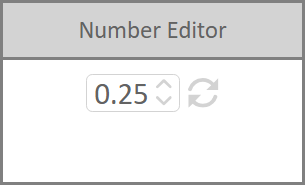
Figure: Number Editor component
The Number Editor component uses a Number data type that you create on the Report Data page. The Number data type is then available as a variable for queries associated with point data or Data Sets in a component. When you change the value of the Number data type in the Number Editor component, the updated value is applied to the variable in the query and updated values are calculated for display in the report.
Number data types are only available within the context of the report in which they are created. Number data types cannot be shared across reports.
The configuration of the Number Editor component and the Number data type requires the following steps:
- Create a Number data type and add it to the Number Editor component.
- Use the Number data type as a variable in a component query.
Use the following steps to create and add a Number Data Type to a Number Editor component:
- Open a report and click Report Data.
- In the drop-down list, select Number and click Go. A new row with a Data Series name containing Number is added to the bottom of the grid.
- (Optional) Click the name in the Data Series column and overwrite it with another name.
- Click the cell in the Description column and enter descriptive text for Number.
- Click the cell in the Link/Value column and click again to enter a value to be used as the default number.
- Click Layout to return to the report layout page.
- Click Number Editor in the component list on the right to add a Number Editor component to the bottom of the report canvas.
- In the Number Editor component banner, click the component's Edit
 icon and click Edit in the menu.
 - In the Number drop-down list select the name of the Number data type you created and click OK.
- Save your report.
Use the following steps to add a Number Data Type as a variable to a component query:
- In a component banner, click the component's Edit icon and click Edit in the menu.
- Click a query entry in the Query column for a data series to open the Query Editor.
- To insert the Number data type as a variable, click Data Series and click the Number data type in the list to add it to the query.
For example, if you have a component showing the total kWh used per month, you can add a Number data type representing the cost per kWh to the query, and use the multiplication operation to arrive at the total cost per month. When you update the cost per kWh in the Number Editor component, the total monthly kWh cost is recalculated and displayed in the report. - Click OK in the Edit Component dialog to save your component changes.
- Save your report.
© 2019 Reliable Controls Corporation. All rights reserved. Published October 29, 2019