Ranking component

Use the Ranking chart component to show minimum or maximum values within Data Sets, displayed as a chart or table. With the Ranking component, you can easily visualize extremes within your data, such as the top ten rooms with the greatest demand for electricity.
The Ranking component will show the highest or lowest values, in ascending or descending order. You can choose the number of results to show.
Ranking component chart
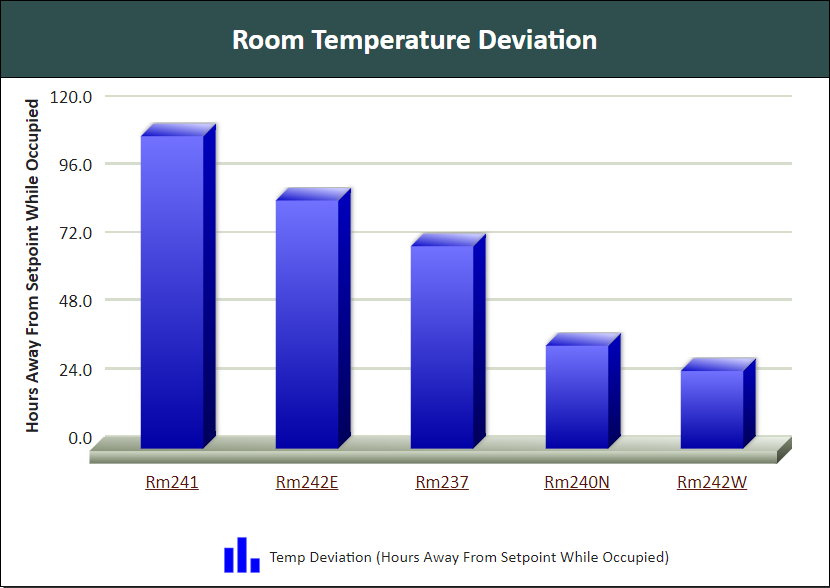
Figure: Ranking component chart example
When viewing a Ranking component chart online, you can:
- Hover over columns to view a flyout that contains the column value.
- If the chart is linked to a details report, click the link for a column to open the detailed report for that item.
- If a legend is included, click a data series name in the legend to view or hide the related column in the chart.
Use the following steps to create a Ranking Component chart:
- Add a Ranking component to a report and click the component's Edit
 icon in the component's banner.
 - Click Edit in the menu.
- Click Add Report Data and click a Data Set to include in the component.
- On the Edit tab of the Edit Ranking Component page, select Chart.
- In the Show box:
- Select Highest or Lowest for the sorting direction.
- Select the number of results you want to include in the report.
- Select Descending or Ascending for the display order of the columns.
- Click Add Report Data and add one or more Data Sets to the component data grid.
- Click the KPI (Key Performance Indicator) selector to specify that the data series in the selected Data Set is your prime area of interest.
- Click Display chart legend to display a legend for the generated chart.
- Click OK.
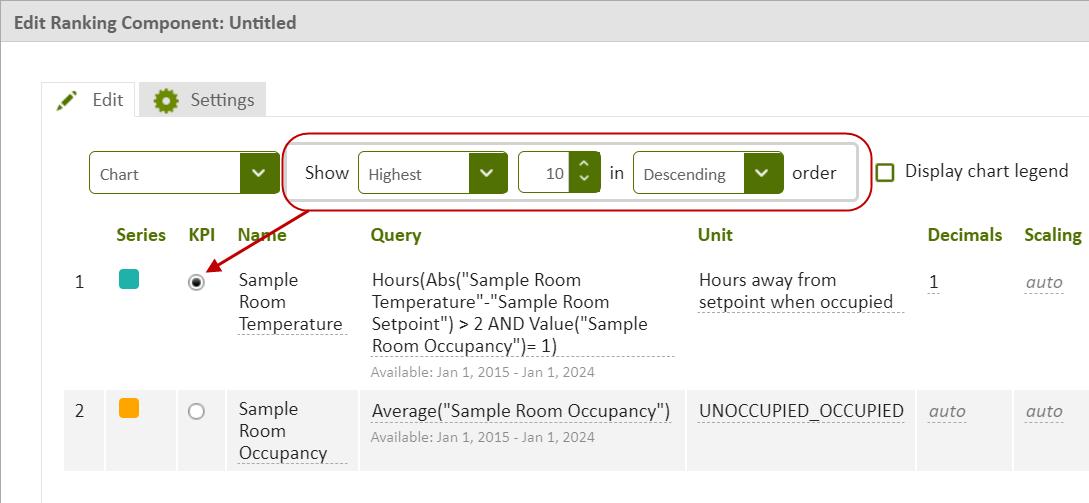
These options are used in conjunction with the KPI selector (see below).
During the comparison of the data series included in the Data Sets, your KPI selection determines the data series that will be ranked. In some cases, that data series uses more than one Data Set, as shown in the Query column in the following image. The ranking is displayed according to the Show options.
© 2019 Reliable Controls Corporation. All rights reserved. Published October 29, 2019