Raw Data component

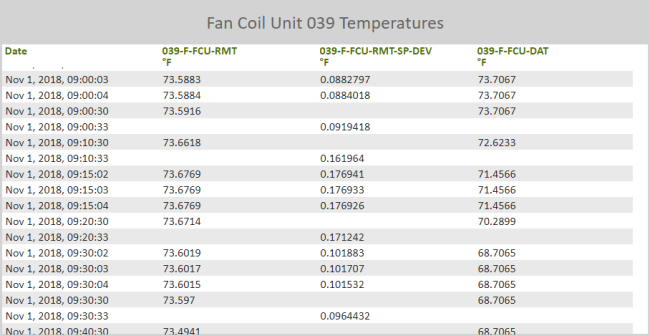
The Raw Data component displays all entries of a single data log within a specified time range. The Raw Data component directly accesses Runtime and Trend Log data in RC-Archive databases, or produces a table of data from external files. No further processing can be applied to this data.
When editing a Raw Data component, you can search for a point by descriptor or object name in a specified database. All of the logs containing the point are identified in the search results. This is useful when you are searching for a specific point but can't remember which log the point is in. You can then:
- Click the point or log name in the search results table to populate the log selection drop-down box and to show all points available in the log.
- Select one or more points in the log to include in the data displayed in the Raw Data component.
You can accomplish this point identification and selection process in a single search operation.
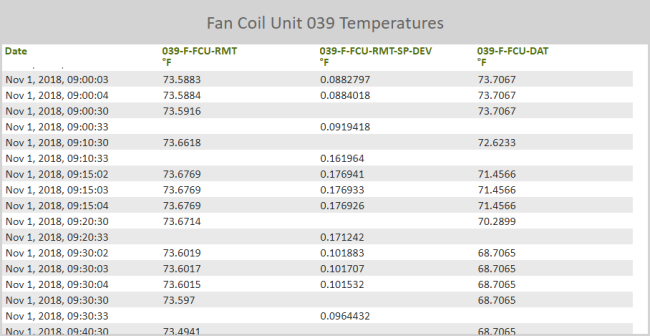
The Raw Data component is an excellent tool to view the data from a Multipoint Trend Log or a Runtime Log before deciding exactly how the data should be presented in a report.
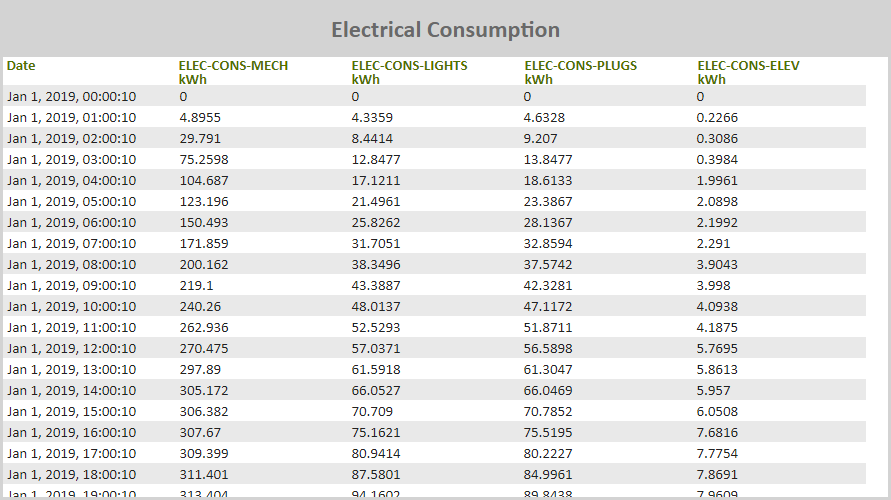
Figure: Raw Data Component example
Use the following steps to display log entries in a Raw Data component:
- Add a Raw Data component to a report and click the Edit
 icon in the component's banner.
 -
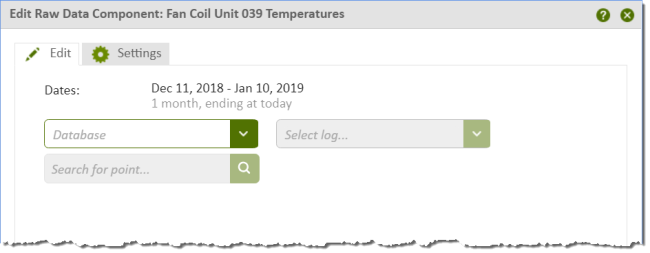
Click Edit in the menu to open the Edit Raw Data Component dialog box.
-
Select an RC-Archive database or external data file from the Database list.
When you select a database the Search for point and the Select log boxes are enabled.
-
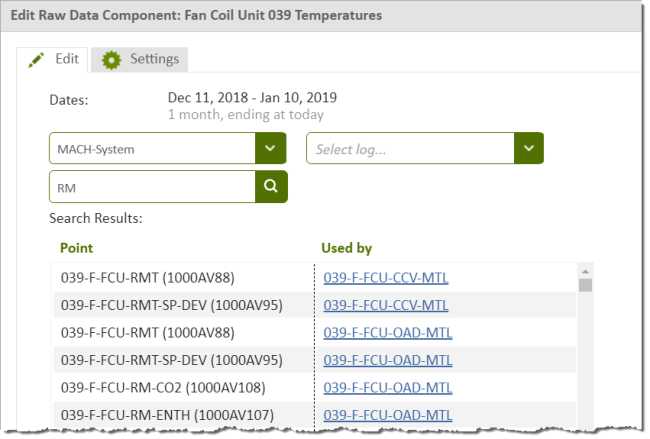
Enter a full or partial point name or mnemonic in the Search for points box.
The list of points is dynamically populated and a Used by column appears indicating the logs containing the point data.
-
Click a point.
The log name containing the point appears in the Select log box, and all of the points included in the log are listed under Select Points.
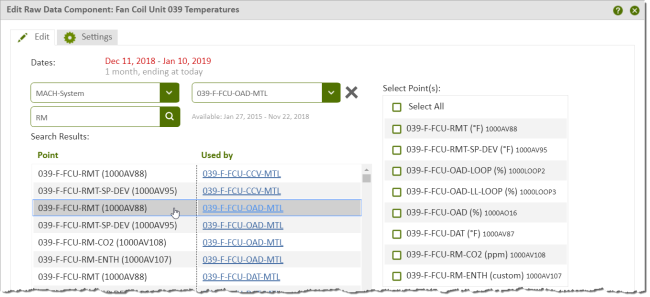
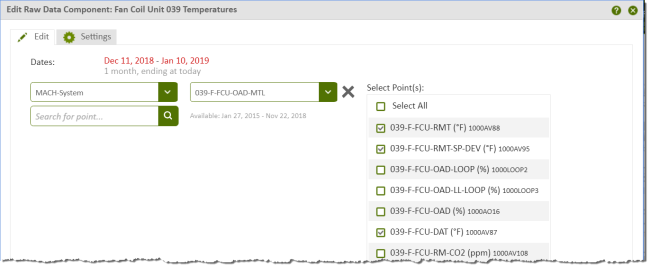
At the same time, the date range applicable to the points in the log is shown under the Select log box. For example, the date range in the image is Available: Jan 27, 2015 - Nov 22, 2018. This helps you determine the dates to specify in the Dates area at the top of the dialog box.
In the image, the dates in the Dates area are red to indicate that they are out-of-range relative to the available dates for the log data.
-
Select one or more points in the Select Points list to include in the Raw Data component.
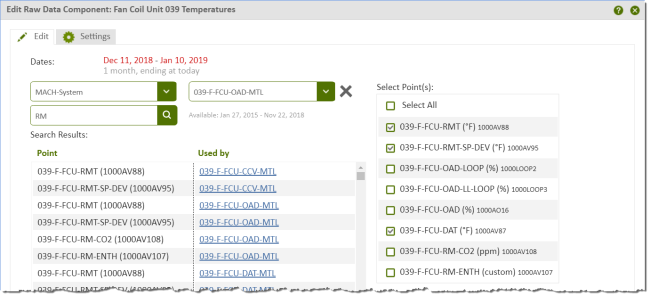
- Click the dates in the Dates area to open the date range input boxes. Specify the dates you want the data for, keeping in mind the date range indicated for the log you are using.
- Report dates — Use the date range configured for the Report Dates selector. For more information see Report Dates selector.
- Specific — Select a fixed start and end date for a range of data.
- Relative — Select a date range and the end date of the range, relative to the current date.
- Available — Use the full date range of data that is available.
-
Click OK to apply your selections and to display the results in the Raw Data component.
Search by log file
-
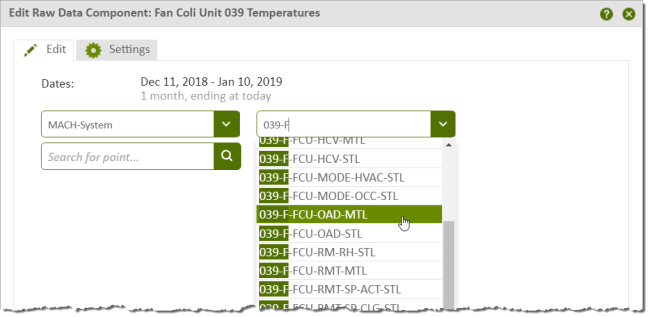
Enter a full or partial log name in the Search log box.
-
Click a log name.
All of the points included in the log are listed under Select Points.
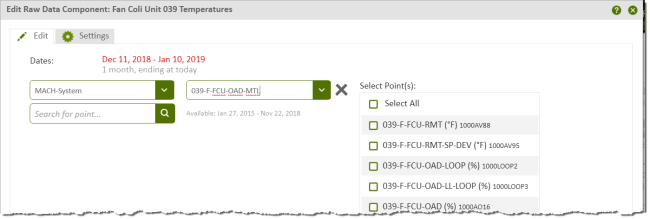
At the same time, the date range applicable to the points in the log is shown under the Select log box. In the image, the date range is Available: Jan 27, 2015 - Nov 22, 2018, and this helps you determine the dates to specify in the Dates area at the top of the dialog box.
The dates in the Dates area are red to indicate that they are out-of-range relative to the available dates for the log data.
-
Select one or more points in the Select Points list to include in the Raw Data component.
-
Click the dates in the Dates area to open the date range input boxes.
- Report dates — Use the date range configured for the Report Dates selector. For more information see Report Dates selector.
- Specific — Select a fixed start and end date for a range of data.
- Relative — Select a date range and the end date of the range, relative to the current date.
- Available — Use the full date range of data that is available.
-
Click OK to apply your selections and to display the results in the Raw Data component.
© 2019 Reliable Controls Corporation. All rights reserved. Published October 29, 2019