Report Dates selector
The Report Dates selector appears at the top of a report with a date range and forward and back arrows. Click an arrow to move through sequential date ranges. Click Apply to refresh the report with the data for the selected date range.
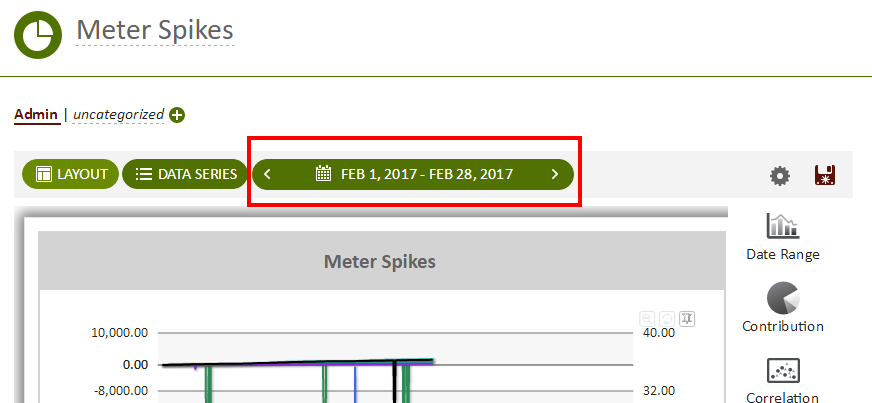
Figure: Report Dates selector at the top of a report layout
Click the report Settings  icon and select Configure Report Dates to open the Configure Report Dates dialog box.
The Report Dates selector only appears after one or more component data series are configured to use Report dates in the Dates column of the component's data series grid. One or more components within a report can share the same date range. If none of the components specify Report dates, and you save the settings for the Report Dates selector, a message appears indicating that the selector does not appear at the top of a report until a component is configured to use report dates.
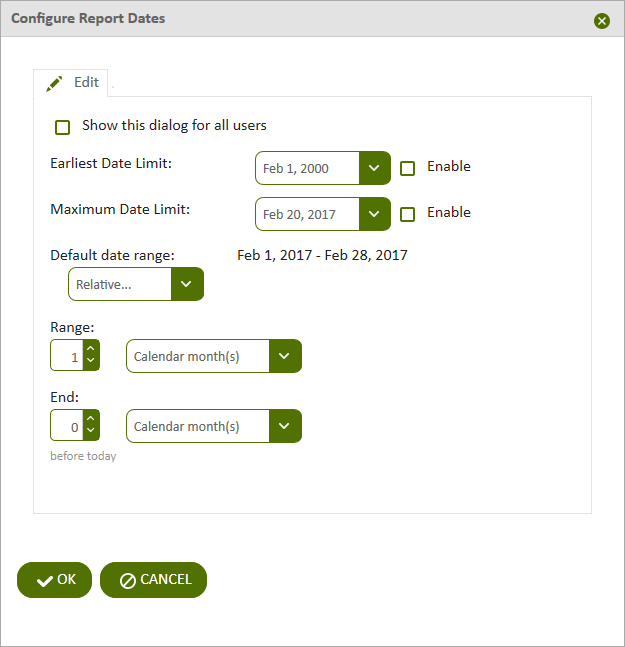
Figure: Configure Report Dates dialog box
Use the following steps to add a Report Dates selector to a report:
- Open a report.
- Click the report Settings icon and click Configure Report Dates.
- In the Configure Report Dates dialog box, complete the following:
-
Show this dialog for all users — Displays the Configure Report Dates dialog box for all users, regardless of their assigned permissions. If this option is not checked, only the report creator and users with administrative privileges can see the Configure Report Dates dialog box.
When this option is enabled, users without edit permissions can open and change the options in the dialog box. The changes are applied to the report and retained when the report is exported to a PDF file. However the user cannot save their changes in the Configure Report Dates dialog box.
- Earliest Date Limit — To set the lower date limit on the Report Dates selector, set the Earliest Date Limit date and year and select the Enable check box. Report viewers are not able to set report dates earlier than this date.
- Maximum Date Limit — to set the upper date limit on the Report Dates selector, set the Maximum Date Limit date and year and select the Enable check box. Report viewers are not able to set the Report Dates selector to a date later than this date.
- Default Date Range — Determines the default date range of the Report Dates selector when the report is opened. There are two methods for determining the default date range:
- Specific — Allows for specific beginning and end dates.
- Relative — Allows for a range of dates relative to the current date in specified increments of days, weeks, calendar months, and years. For Range, set the number and select an increment in the drop-down list. For End, set the number and select an increment to indicate the end period relative to today (the present date). Setting 0 for a selected increment results in current data being displayed up to (at least) the previous midnight.
Note: 12:00 am is midnight and is interpreted by RC-Reporter as the end of that day. The new day starts at 12:01.
© 2019 Reliable Controls Corporation. All rights reserved. Published October 29, 2019