Creating a Data Set
To create a Data Set use the Edit Data Set dialog box and filter the list of points to those that share similar characteristics, such as names or units. When the resulting list of points meets your filter criteria, select a portion of the point names common to each point and one or more wildcards representing a unique characteristic of each point name, and designate that selection as the identifier. (See The Edit Data Set dialog box for a description of the fields and controls on the page.)
Note: When you filter points for inclusion in a Data Set, the maximum number of points that can be returned is 20,000 points. Otherwise, you are prompted to adjust the filter criteria.
Complete the following steps to create a Data Set using the sample points included in RC-Reporter. The steps duplicate those used to create the Data Set identified as Sample Room Temperatures. The Data Set includes points related to temperature in °C for rooms on the 2nd floor.
Use the following steps to specify a Data Set name:
- Click Data > Data Sets.
- In the Data Sets pane, click New Data Set to open the Edit Data Set dialog box. The bottom area of the dialog box is populated with the points in the system.
- Enter a name for the new Data Set in the Name box. For example, enter My Sample Room Temperature.
Note: The tilde ( ~ ), double quote ( " ) and backtick ( ` ) characters are not supported in Data Set names.
Use the following steps to refine the List of Points by Database and Unit:
- Select Samples in the Database drop-down list to show only the points in that database. You can select more than one database if multiple databases are included in the list.
- Select °C in the Unit box to further refine the list of points. You can select more than one unit in the list.
Use the following steps to filter the list of points for specific rooms:
- In the Filter box, enter the sequence of characters
N-2nd-Rmto list only those points matching that filter pattern. This sequence of characters matches the descriptor naming convention for the points that you want to include in the Data Set.
- To include the room numbers in the names for the 2nd floor rooms, click the Number Matcher icon to add the number wildcard to the filter string.
-
In the Number Matcher dialog that appears, use the default settings and click OK.
The filter entry appears as follows:
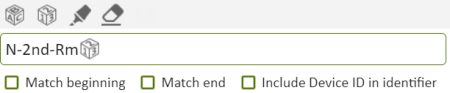
-
To account for any room numbers that include an alphabetic character, for example the
Ncharacter inRM240N, click the Character Matcher icon to add a wildcard to the filter for characters in the room number.In the Character Matcher dialog that appears, change the selection from Only letters to Any character and click OK.
The filter entry appears as follows:
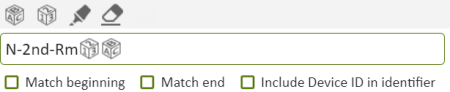
- To include only point names in the list that include
-T(temperature) following the room number, add-Tto the filter. Note that some points names in the list contain-T-SP. -
Select the Match end check box to list only point names ending in
-T.This excludes point names ending with
-T-SP(SP indicates setpoint).
Use the following steps to refine the identifier for each room:
-
To define the identifier for each room, click the Pattern Selector
 icon. You toggle the Pattern Selector on and off by clicking it.
The identifier includes a portion of the point names common to each point and one or more wildcards representing a unique characteristic of each point. You need to highlight the part of the point name matching those characteristics rather than what the point measures i.e. temperature (
-T). -
Select
RMand the number and character wildcards with the Pattern Selector. Your selection is highlighted and that descriptor segment is included in the Identifier column in the grid for each point respectively.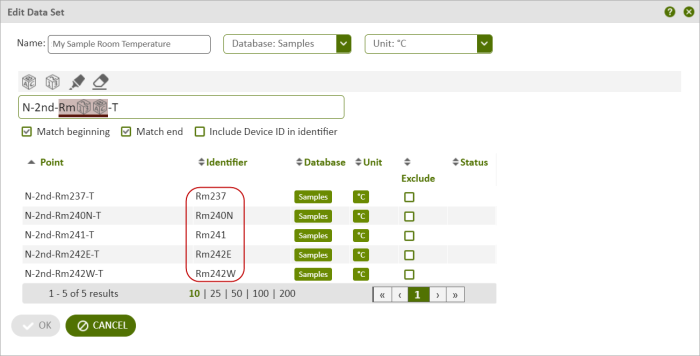
- (Optional) Click the check box in the Exclude column for any points that you want to exclude from the Data Set.
-
Click OK to create the Data Set.
The Data Set is now available for selection in the chart components.
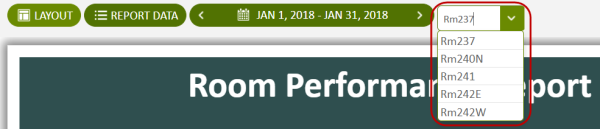
When one or more components include the Data Set, the Identifier Selector is automatically added to the top of the report and it includes the identifiers that you defined in the Data Set.
© 2019 Reliable Controls Corporation. All rights reserved. Published October 29, 2019