Dates
The Dates column in a component data grid displays the limits and status of the date range for the data series. Each data series can have its own date range (a specific range, and relative range, or all data), or share a date range controlled at the report level using the Report Dates selector. All points within a component must use the same date range. The date range of a data series can also reference the date range of another data series.
Note: If the defined date range for the data series begins before or after the first and last timestamp of the source data, the text for the row turns red, indicating that there is a potential issue with either the date range parameters or the source data.
To choose a date range, click in the Dates column for the data series' row. A drop-down list with the following options displays:
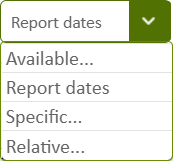
Figure: Dates drop-down box options
The options shown in the Date drop-down list are:
- Available — Use the full date range that is available from the source data. The source data "Available" date range is shown below the query for each point.
- Report dates — Use the date range configured for the Report Dates selector. For more information see Report Dates selector.
- Specific — Select Specific to manually select fixed start and end dates for the range of data to be used in the component.
- Relative — Select Relative to select the date range and the end date of the range, relative to the current date.
© 2019 Reliable Controls Corporation. All rights reserved. Published October 29, 2019