RC-Reporter pages
The pages in RC-Reporter are designed to provide a consistent look and feel as you move from page to page in the interface. You can go to the pages by clicking the respective items in the Admin and Data menus. You can also immediately go to the Manage Reports page when you click the RC-Reporter logo at the top left in the interface.
Use the following items in the Admin menu to display the respective pages:
- Reports — Displays Manage Reports
- Users — Displays Manage Users
- Distribution Schedules — Displays Manage Distribution Schedules
Use the following items in the Data menu to display the respective pages:
- Databases — Displays Manage Databases
- Points — Displays Manage Points
- Data Sets — Displays Manage Data Sets
- External Files — Displays Manage External Files
Each page, with the exception of the Manage Distribution Schedules page, contains similar areas and controls. The Manage Distribution Schedules page does not include the left pane that is in the other pages.
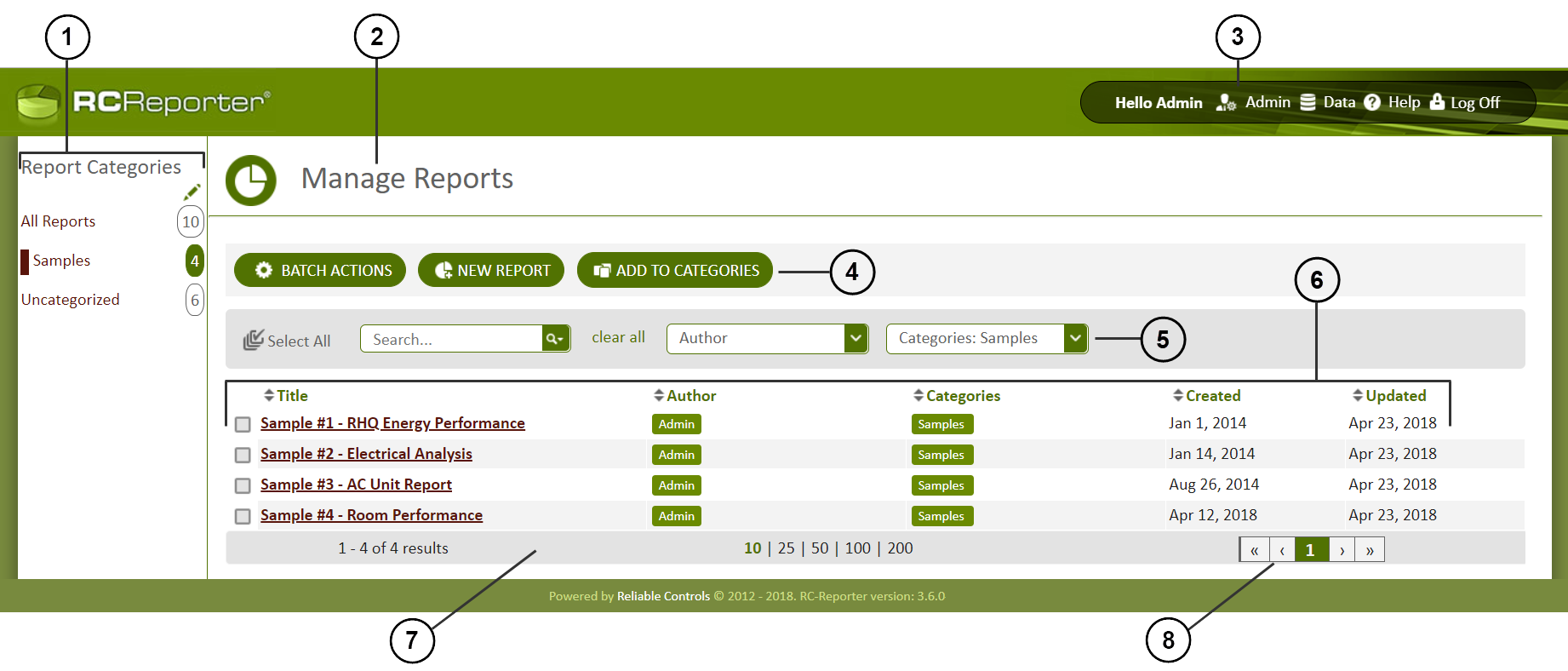
The following image of the Manage Reports page is representative of the layout of each of the pages and shows the areas and controls common to each page.

|
Left pane — Contains items that are related to the page being displayed. The pencil  icon indicates that you can edit the current entries in the pane. Icons incorporating a plus symbol, for example on the Manage Databases page, indicate that you can add items to the pane. icon indicates that you can edit the current entries in the pane. Icons incorporating a plus symbol, for example on the Manage Databases page, indicate that you can add items to the pane. |

|
Page name — Identifies the page that you are currently viewing and working with. |

|
Menu bar — Contains items in the Admin and Data menus that are determined by your assigned permissions. The Help menu contains links to the online information for RC-Reporter. What's New and About RC-Reporter provide information related to those items, and the last item is a link that opens the Reliable Controls web page. |

|
Actions bar — Provides actions related to the page that is open. Batch Actions opens a list that applies to the items you select in the grid. For example, Batch Actions on the Manage Reports page lists Delete Selected and Import Report (RRP) actions. On the Manage Users page, Batch Actions lists Enable, Disable and Delete for the user names selected in the grid. |

|
Search bar — Provides both search and filter capabilities that are customized for the page. For example, the Search entry box on the Manage Reports page contains a drop-down list of Any Field, Title, Author and Categories items to help you narrow your search. The list on the Manage Users page contains Any Field, Name, Company and Email items. You can refine your search results by using the filter boxes to the right of the Search entry box. Each filter entry box contains one or more items for selection that are specific to the items in the grid area. |

|
Grid area — Provides a list of items organized under column headings that are related to the page you opened. |

|
Paging bar — Shows the total number of items on the page and how many are currently displayed. You can select the number of items to include on the page. The more items you choose to display, the greater the time required to load the page. |

|
Paging control — Allows you move to the next, previous, first and last pages of the grid. You can also enter a specific page number to open a specific page. |
You can return to the Manage Reports page by clicking the RC-Reporter logo or the website title at the top of any page. You can also return to the page by clicking Admin > Reports.
© 2019 Reliable Controls Corporation. All rights reserved. Published October 29, 2019