The Edit Data Set dialog box
The following image shows the fields and controls in the Edit Data Set dialog box.
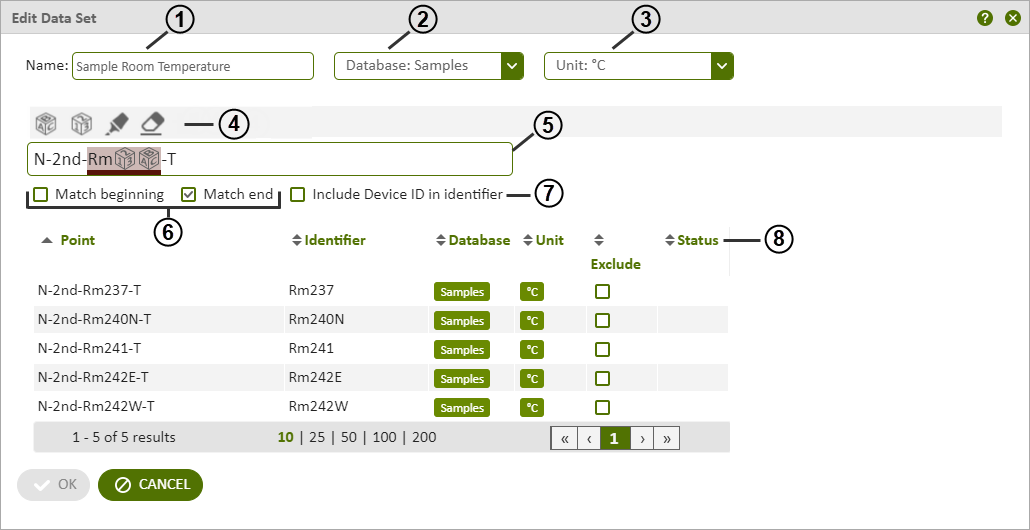
Figure: The Edit Data Set dialog box showing a filtered list of points and the specified identifier

|
Data set name input box — Enter a name for the new Data Set. |

|
Database selection list — Use the drop-down list to select one or more databases to narrow the list of points to just those in the selected databases. |

|
Unit selection list — Use the drop-down list to select one or more units to narrow the list of points to just those with the selected units. |

|
Filter box options — Click an icon to apply the operation to the Filter box. In order from left to right: Character Matcher Adds a character wildcard to the filter contents. Click to open the Character Matcher dialog box, specify the character options to apply to the wildcard and click OK to add the wildcard. Number Matcher Adds a number wildcard to the filter contents. Click to open the Number Matcher dialog box, specify the number options to apply to the wildcard and click OK to add the wildcard. Pattern Selector Click the Pattern Selector icon to toggle it on and select a portion of the filter contents to use as the identifier. Click the icon again to toggle it off. Remove Pattern Selector Click the Remove Pattern Selector icon to toggle it on and select that portion of the previously selected contents to remove it from the identifier. Click the icon again to toggle it off. |

|
Filter box — Enter the characters, character wildcards and number wildcards to filter the points listed in the grid area. |

|
Filter refinement options — Select Match beginning and/or Match ending to refine the list of points in the grid area to those matching the first or last character in the Filter box, respectively. |

|
Identifier device ID option — Select the check box to add the device ID to each of the identifiers listed in the grid area. |

|
Grid column labels — Indicates the column headings for the grid area. The list of items in the grid area are based on your database and unit selections and the Filter box contents. |
| Point
Shows the list of points, filtered by any selections in the Database and Unit drop-down list, and any Filter box content. |
|
| Identifier
Shows the identifier you defined with the Pattern Selector in the Filter box. If you selected Include Device ID in identifier, the device ID for the referenced point is included with each identifier. |
|
| Database
Identifies the database where the point's data is located. If one or more databases are selected in the Database drop-down list, those databases are referenced in this column. |
|
| Unit
Indicates the unit associated with the point. If one or more units are selected in the Unit drop-down list, those units are referenced in this column. |
|
| Exclude
Allows you to exclude any of the points in the Data Set from being included in the chart components. You can edit the Data Set and clear any of the check boxes to include previously excluded points in the chart components. |
|
| Status
Contains an exclamation point icon identifying an issue with the item. Hover over the icon to display a description of the issue and the possible course of action to resolve it. |
© 2019 Reliable Controls Corporation. All rights reserved. Published October 29, 2019