Components and the report canvas
Add a component to the report canvas using one of the following methods:
-
Click a component in the vertical list on the right of the canvas to add it immediately to the canvas.
The first component on the canvas is placed in the top-left position. Additional components are positioned left-to-right and top-to-bottom.
— or —
- Click and drag a component from the vertical list to a specific location on the report canvas.
The component is now ready for configuration.
Component resizing handles and the move pointer
To resize a component, click anywhere in the component to display faint double lines indicating the resizing handles at each corner and at the center of each side. Click and hold a resizing handle and drag it to change the size. Use the corner resizing handles to change both the vertical and horizontal size of the component. Use the resizing handles on the sides to change the vertical or horizontal size independently.
Charts and text contained in a component are resized relative to any change in the size of the component.
To reposition the component, click the component banner to change the mouse pointer to a move pointer  and then click and hold to drag the component to another location on the report canvas.
The following image shows resizing handles and the move pointer.
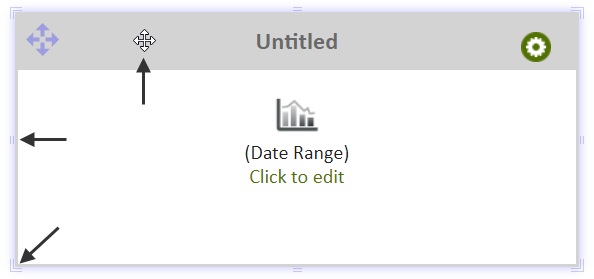
Figure: Resizing handles and the move pointer on a component
Component snap lines
As you add and position a component next to another component, red dotted snap lines appear to help you align the component. The snap lines appear along the sides and at the vertical or horizontal center of the component. If you press the Shift key while moving or resizing a component, the snap lines do not appear.
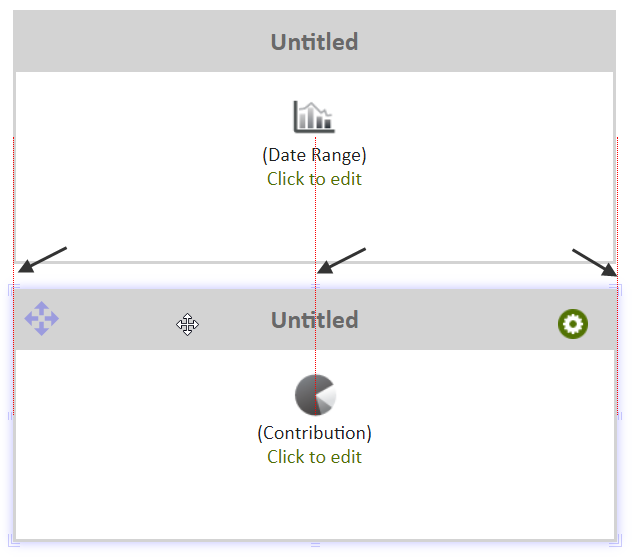
Figure: Snap lines to help aligning components
Component space buffer
As you move a component near another component or near the edge of the page, a blue space buffer appears to help you position the component with appropriate and consistent spacing in relation to other components and to the page margins. The space buffer is not shown when you complete the positioning of the component.
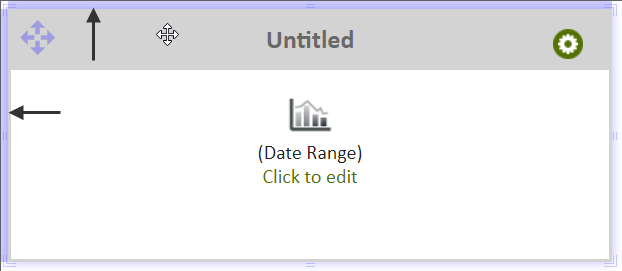
Figure: Blue space buffer used for consistent spacing of components
Overlapping components
You can also manually position components to overlap. The component being moved to an overlapping position defaults to the top layer. Components that overlap appear with a blue border. The blue border is not shown when you complete the moving and resizing of overlapping components.
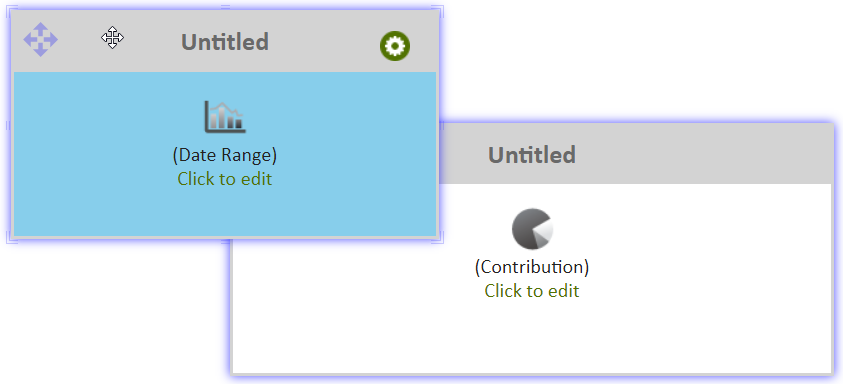
Figure: Blue borders indicating overlapping components
© 2019 Reliable Controls Corporation. All rights reserved. Published October 29, 2019